


Connecting to Fortinet VPN Client

Jan 14, 2026
 109
109
- First make sure your computer is connected to the internet. Note: It can't be the state network as VPN won't work (plus it would be pointless anyway since you wouldn't need it then)
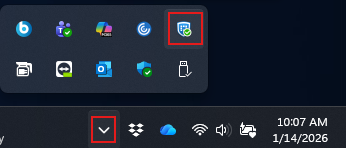
- Click the little arrow on the bottom right and then right click the Fortinet Client icon shown below.
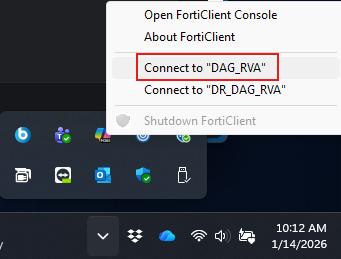
3. Click Connect to DAG_RVA.
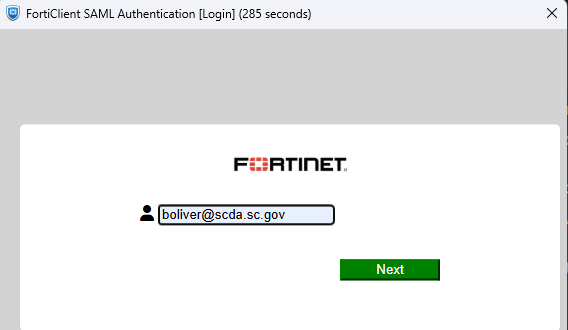
4. You will get a prompt to enter your full SCDA email address in. You will need to do this twice. Click Next each time after entering it in and then enter your SCDA (Admin) password when prompted and click Next.
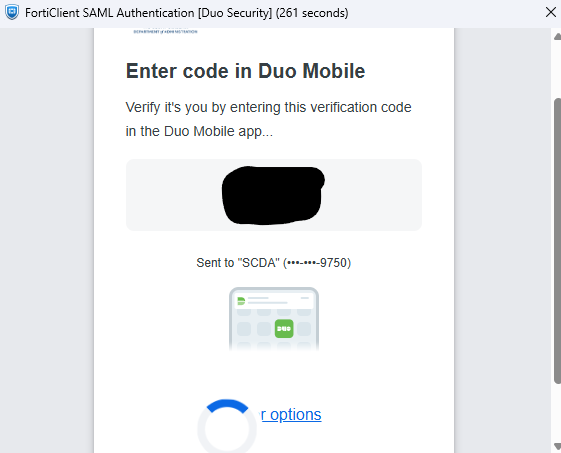
5. You will then get a DUO code. Open up your DUO application on your phone and input the code you see on the computer into the DUO app.
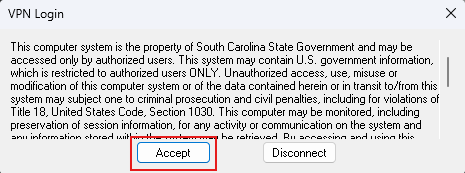
6. Finally, you will get a disclaimer box with Accept or Disconnect. Click Accept to connect to VPN.
You should now have access to state resources, included Network drives and access to SCEIS related functions such as changing your password.

